

Phone video editing in 2026 is powerful enough that many people never touch a laptop, but exports still cause the same frustration: a clip looks great in the editor, then looks soft, noisy, or oddly washed out once uploaded. Sometimes audio drifts, text overlays look fuzzy, or the platform crops the frame in a way you didn’t expect. The problem is rarely your camera. It’s usually the export pipeline: resolution and frame rate mismatch, wrong color range, too-low bitrate, or an “auto” setting that silently chooses a compromise. Social platforms also re-encode everything, and they do it differently depending on whether you upload from mobile or desktop, the account type, and the final file characteristics. The lifehack is creating a clean, repeatable export approach: pick the correct format and codec, choose a bitrate that survives platform compression, and lock frame rate and resolution so you don’t trigger unnecessary scaling. Then you test with a short clip, preview on two screens, and save an export preset so you’re not guessing every time. When you do this, editing on a phone becomes predictable, and your videos stay sharp and clean after upload.
Export without surprises: lock resolution and frame rate, avoid “auto” scaling, and keep one master version
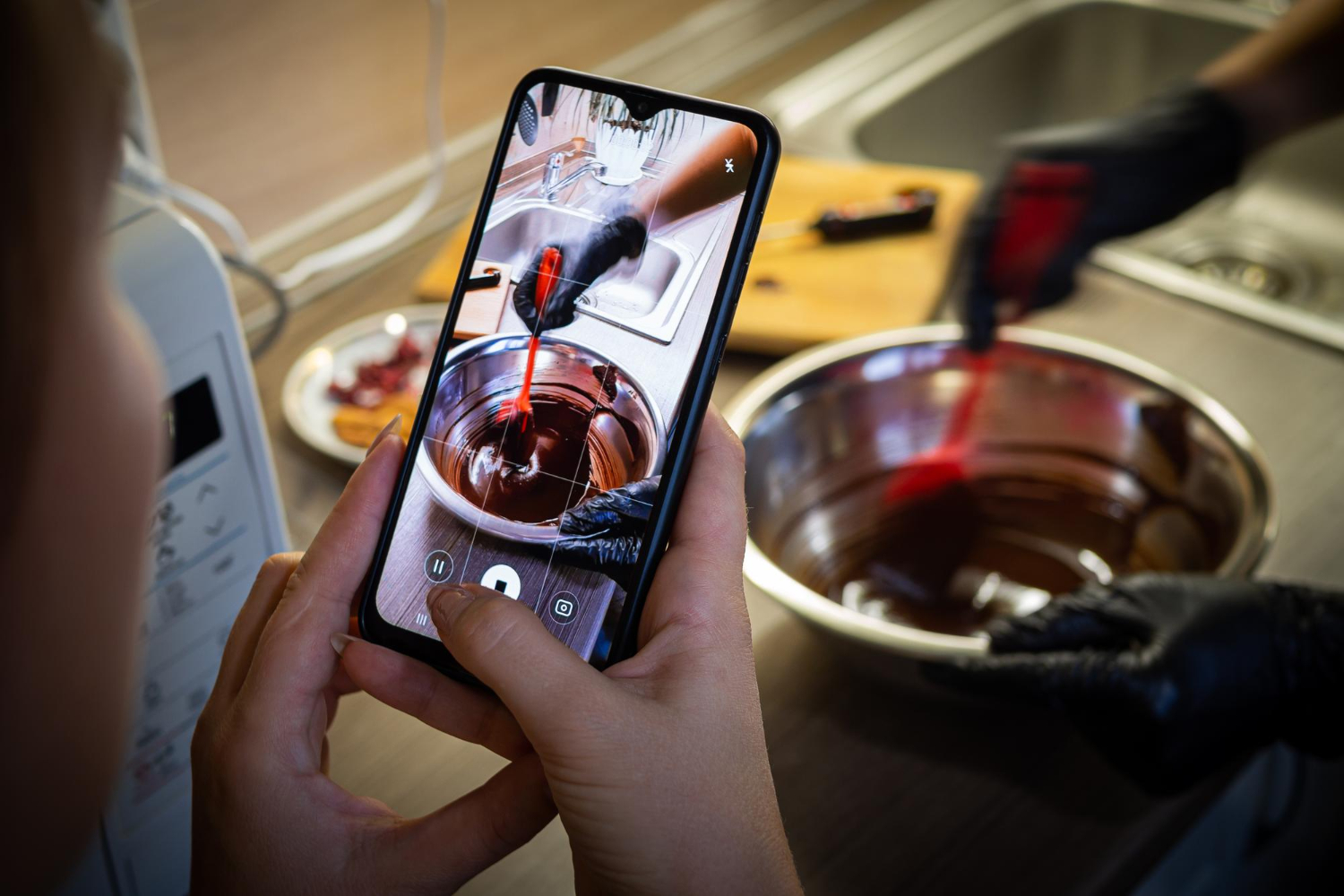
Most export surprises come from the editor trying to “help” by adapting your project to a default template. The lifehack is deciding your target early and locking it. If your project is vertical, keep it vertical; don’t export vertical content in a horizontal container or vice versa. Set the export resolution to match your timeline or your main footage. Up-scaling a lower-resolution clip won’t create detail, and it can make compression look worse. Down-scaling can be fine, but do it intentionally rather than letting the app do it unpredictably. Frame rate is equally important. If you shot at 30 fps, export at 30 fps. If you shot at 60 fps and you want smooth motion, export at 60 fps. Mixing frame rates can cause micro-stutter or “odd motion” that becomes more obvious after platform encoding. Also be careful with slow motion. If you’re using slow-motion footage, convert or interpret it correctly in the editor so the export frame rate remains stable. Another key habit is keeping a master export. Create one high-quality “master” file that you store locally or in cloud storage and then create platform-specific exports from that if needed. This protects you from re-editing everything when you later realize a platform ruined quality. The master doesn’t need to be massive, but it should be higher quality than the final upload version so you’re not repeatedly compressing compressed files.
Correct formats and codecs: choose what platforms like and what your phone can encode cleanly
Formats matter because they determine how your file will be interpreted and re-encoded. The lifehack is using widely compatible settings that platforms handle well. Most platforms accept modern codecs, but the safest route for predictable uploads is a standard MP4 container with a common video codec and AAC audio. This combination is widely supported and tends to avoid weird playback issues. If your editor offers HEVC/H.265, it can produce smaller files at a given quality, but not every platform treats it equally, and sometimes it triggers different processing paths. For maximum compatibility, a more “universal” encoding approach can reduce surprises, especially if you share across multiple platforms and devices. Audio is often overlooked. Make sure audio is exported at a stable sample rate and bitrate; the default is usually fine, but avoid exotic audio settings that can cause sync or muffled sound after upload. Another important element is orientation metadata. Some exports rely on metadata flags to indicate rotation, which can confuse certain players or upload pipelines. If you’ve ever seen a clip upload sideways, this is why. The lifehack is exporting in the correct orientation baked into the file rather than relying on rotation flags, if your app provides that option. Finally, captions and overlays: if you add text, make sure your export is at full resolution and not a “draft” mode, because text reveals compression quickly. Crisp text is a good quality indicator; if text looks soft, your video will look soft too.
Clean quality for social platforms: bitrate, color, and the two-screen preview that prevents disappointment

Even a perfect export will be re-encoded by social platforms, so your job is to give the platform a file that survives compression. The lifehack is using a bitrate that’s high enough to preserve detail through the platform’s second compression pass. Low bitrate makes uploads crumble—blocky gradients, smeared hair, noisy shadows—especially in fast motion. But you don’t need absurd numbers; you need a sensible balance that your phone can export reliably and your upload can handle. The second quality factor is color and dynamic range. Some footage looks washed out after upload because of mismatched color range or HDR handling. If you shot HDR and export in a way the platform mishandles, you can get dull highlights, odd skin tones, or crushed shadows. A practical approach is consistency: if your footage is SDR, keep the project SDR and export SDR. If you do use HDR, test one clip first to confirm the platform displays it correctly. The most powerful lifehack here is the two-screen preview. Watch your exported file on your phone and on a second screen—tablet, laptop, or TV—before you upload. If it already looks soft or washed out locally, the platform will make it worse. If it looks clean locally, you’re starting from a strong place. Then upload a short test. Use a 10–20 second clip with motion and detail, because that’s where compression problems show up fastest. Once you find settings that hold up, save them as a reusable export preset in your editing app if possible. That way every future project starts with a known-good profile, and you stop “tuning” exports every time like it’s guesswork.